How to Remove a Background on iPhone and Android (Step by Step)
How to remove a photo background on iPhone and Android using built-in features or your mobile browser, plus how to save a real transparent PNG on your phone.
6 min read
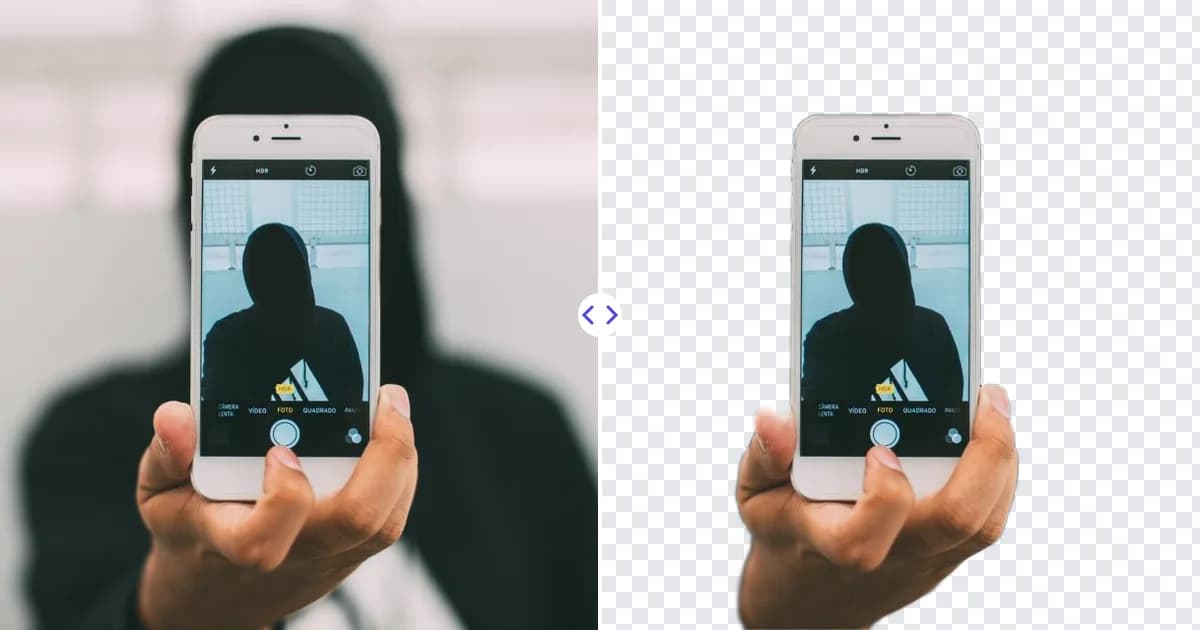
On an iPhone running iOS 16 or later, open a photo in the Photos app, touch and hold the subject until it lifts away from the background, then tap Copy or Share. On many Android phones, the gallery app offers a similar long-press feature, and on any phone you can use a browser-based tool such as Remove Photo Bg to upload a photo and download a transparent PNG. This guide covers each option and how to make sure the result keeps its transparency.
Remove a background on iPhone with "Lift subject from background"
Apple introduced a feature in iOS 16 that lets you isolate the subject of a photo with a long press. It works on supported iPhone models and handles people, pets, objects and more.
- Open the Photos app and select the photo.
- Touch and hold the subject. A glowing outline appears when the subject is lifted.
- Choose Copy to paste the cutout into another app, or Share to send or save it.
- Alternatively, drag the lifted subject with one finger and, with another finger, open a different app such as Messages or Notes and drop it there.
In iOS 17 and later, the same menu also offers Add Sticker, which turns the cutout into a sticker you can use in Messages and other apps. The feature also works in other places that display images, such as Safari and screenshots, though behavior can vary by app.
Remove a background in the Files app
If you want a saved image file rather than a copied cutout, the iPhone Files app includes a Remove Background quick action. Save the photo to Files, touch and hold the file, choose Quick Actions, and then Remove Background. Files creates a new image of the subject with a transparent background alongside the original.
Limitations on iPhone
- You cannot choose which object becomes the subject if the phone picks a different one.
- There is no manual edge refinement.
- Saving a copied cutout to the Photos app may not preserve transparency in every workflow, so check the result before using it in a design.
- Older iPhones that cannot run iOS 16 do not have the feature.
Remove a background on Android
Android is made by many manufacturers, so the built-in options vary.
Samsung Galaxy
Recent Samsung Galaxy phones include a subject-cutout feature in the Gallery app. Open a photo, touch and hold the subject until an outline appears, and then choose to copy it or save it as an image. Availability depends on your model and One UI version.
Google Pixel and other Android phones
Some other Android phones and photo apps offer similar cutout or sticker tools, while others do not have a built-in way to remove a background at all. Feature names and menus differ by brand and software version, so check your gallery app's editing options or the manufacturer's help pages.
When your phone does not have a built-in option - or when you need a clean PNG file rather than a pasted cutout - a browser-based tool is the most consistent choice.
Remove a background in your mobile browser
Remove Photo Bg works in any modern mobile browser, including Safari on iPhone and Chrome on Android, so there is nothing to install.
- Open Remove Photo Bg's background remover in your phone's browser.
- Tap to upload and choose a photo from your library or take a new one. JPG, JPEG, PNG and WEBP files up to 16 MB are supported, which covers typical phone photos.
- The AI detects the subject - a person, product, pet, car, logo or object - and removes the background automatically.
- Download the result. You get a PNG with a real transparent background.
This approach gives you the same result on every phone, and the file is ready to use in design apps, online store listings or presentations. Images are processed on Remove Photo Bg's own servers rather than being sent to third-party AI services.
Built-in tools vs a browser tool
| iPhone / Android built-in | Browser tool | |
|---|---|---|
| Speed for quick stickers and messages | Excellent | Good |
| Works on every phone | No | Yes |
| Downloadable transparent PNG | Depends on app and workflow | Yes |
| Works on desktop with the same results | No | Yes |
Saving a transparent image on your phone
Phones handle transparency less predictably than desktop computers. Keep these points in mind:
- Keep it as PNG. If an app converts the image to JPG, the background turns solid.
- Watch out for messaging apps. Many chat apps compress photos and drop transparency. Send the file as a document when you need to keep it intact.
- Check in a design app. Place the PNG over a colored background in an editor to confirm it is truly transparent.
- Store master files in a files app or cloud drive, which keeps the original PNG untouched.
Our guide on how to make an image background transparent covers more saving pitfalls.
Tips for better cutouts from phone photos
- Use portrait-friendly lighting. Soft, even light keeps edges defined.
- Separate the subject from the background. Step away from walls so the background is clearly different.
- Hold steady. Motion blur makes edges hard to detect.
- Avoid heavy digital zoom. Move closer instead to keep detail.
- Remove distractions first. The object remover can erase small items overlapping your subject.
For more, read how to take photos that are easy to cut out.
Fixing a photo before you cut it out
Phone photos often include small distractions - a stray cup on the table, a cable behind a product, or a passerby in the corner. If one of them overlaps the subject, it may end up in your cutout. Erase it first with the object remover: upload the photo, paint over the unwanted item with the brush, and the AI fills the area with matching background. Then run the cleaned photo through the background remover. If the photo is a small image saved from a chat or social app, enlarging it with the image upscaler before cutting out can give you smoother edges.
What to do with your cutout
Once you have a transparent PNG on your phone, you can add it to a new background in a mobile design app, create stickers, prepare product images for an online store or update your profile picture. If you want to place your subject on a new scene, see how to add a new background to a photo.
Try it on your phone
Built-in features on iPhone and Android are great for quick cutouts, while a browser tool gives you a dependable transparent PNG on any device. Open Remove Photo Bg on your phone and remove the background from your next photo.