Remove White Background from Image - Clean Edges, No Halos
Remove a white background from photos, clip art, scans and product shots. AI keeps white details inside the subject and avoids the halos a magic wand leaves.
4 min read
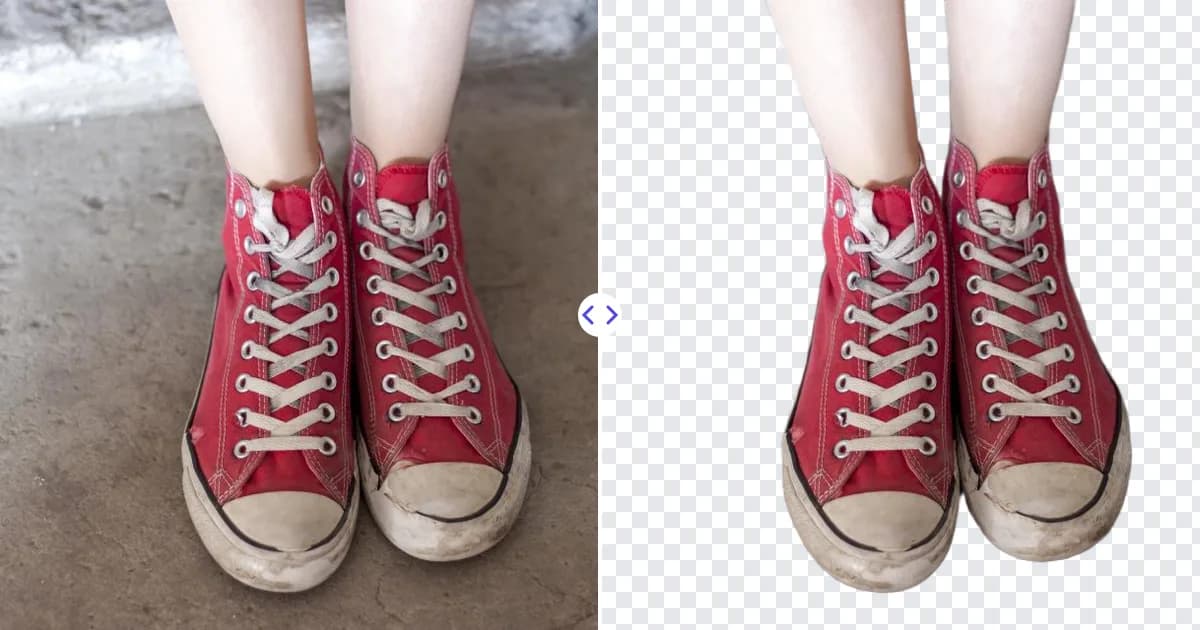
To remove a white background, upload the image to the Remove Photo Bg background remover. The AI identifies the subject by its shape and content rather than by color alone, so it clears the white backdrop while keeping white parts of the subject, like a shirt collar, a label or the highlight on a bottle. You download a PNG where the white is gone and the subject sits on transparency.
Why white backgrounds are trickier than they look
A plain white background seems like the easiest thing to remove. In practice, the classic approach of selecting white with a magic wand or a "remove color" tool runs into several problems:
- White inside the subject disappears too. A color-based tool cannot tell the white of the backdrop from the white of a sneaker sole, so it punches holes in the subject.
- Edges keep a halo. Edge pixels are blends of the subject color and white. A strict color selection leaves a light fringe that shows up on dark backgrounds.
- White is rarely pure white. Studio sweeps, paper and walls have gradients, gray corners and soft shadows that a single color pick misses.
- Scans have noise. Scanned paper has texture and compression speckles, so it is not a uniform color at all.
AI segmentation avoids these problems because it decides what the subject is, then removes everything else, regardless of color.
How to remove a white background
- Upload your file. Add a JPG, JPEG, PNG or WEBP image (up to 16 MB) to the background remover.
- Let the AI separate the subject. It detects the foreground and clears the white backdrop automatically.
- Inspect against a dark color. White halos are invisible on white but obvious on black, so check the edges with a dark background in your editor.
- Download the transparent PNG. Use it on any background you choose.
Common images with white backgrounds
Product photos shot on white
Many sellers shoot on a white sweep. Removing the background gives you a clean cutout you can place on a pure white canvas (removing gray corners and uneven light) or on a lifestyle scene. See the product photo background remover for store-focused tips.
Logos and clip art
Logos are often exported as JPGs with a white box around them. Removing the white lets the logo sit on colored headers and photos. For logo-specific advice, see remove background from logo.
Signatures and stamps on paper
Scanned or photographed signatures sit on white or off-white paper. Removing that paper background lets you place the signature on documents. Our signature background remover page explains how to get crisp ink.
Screenshots and diagrams
Charts, icons and diagrams copied from documents usually come on white. A transparent version fits dark-mode slides and colored layouts.
Tips for the cleanest result on white
- Give white subjects some contrast. A white object on a white background has almost no visible edge. A light shadow or a slightly gray backdrop helps both the AI and the human eye.
- Avoid overexposure. If the backdrop is blown out so much that it bleeds into the subject's edges, details are lost. Expose for the subject.
- Scan at a decent resolution. For documents, a scan of around 300 DPI gives clean edges; tiny phone crops do not.
- Remove stray marks first. Dust, a pencil line or a stain near the subject can be erased with the object remover before or after cutting out.
- Decide on shadows. Soft contact shadows on white are usually removed with the background; add a new shadow in your editor if the subject looks like it floats.
White background vs transparent background
They are not the same thing. A white background is made of real white pixels, so it shows as a white box on any colored surface. A transparent background has no pixels at all, so whatever is behind the image shows through. If a marketplace asks for a pure white background, you can still start by removing the original backdrop and then placing the cutout on a pure white canvas, which gives a cleaner, more even white than most photos have straight from the camera.
Learn more in how to make a logo transparent, which covers the same principle for graphics.
Why use AI to remove white backgrounds
AI removal saves you from manual selection, tolerance tweaking and edge cleanup. It works in any modern browser on desktop and mobile, it is free to use, and your images are processed on our own servers rather than by third-party AI services.
Try it now: upload an image and remove the white background.