Headshot Background Remover - Professional Portraits from Any Photo
Turn a casual portrait into a professional headshot. Remove the background with AI and place yourself on a clean color for LinkedIn, resumes and team pages.
4 min read
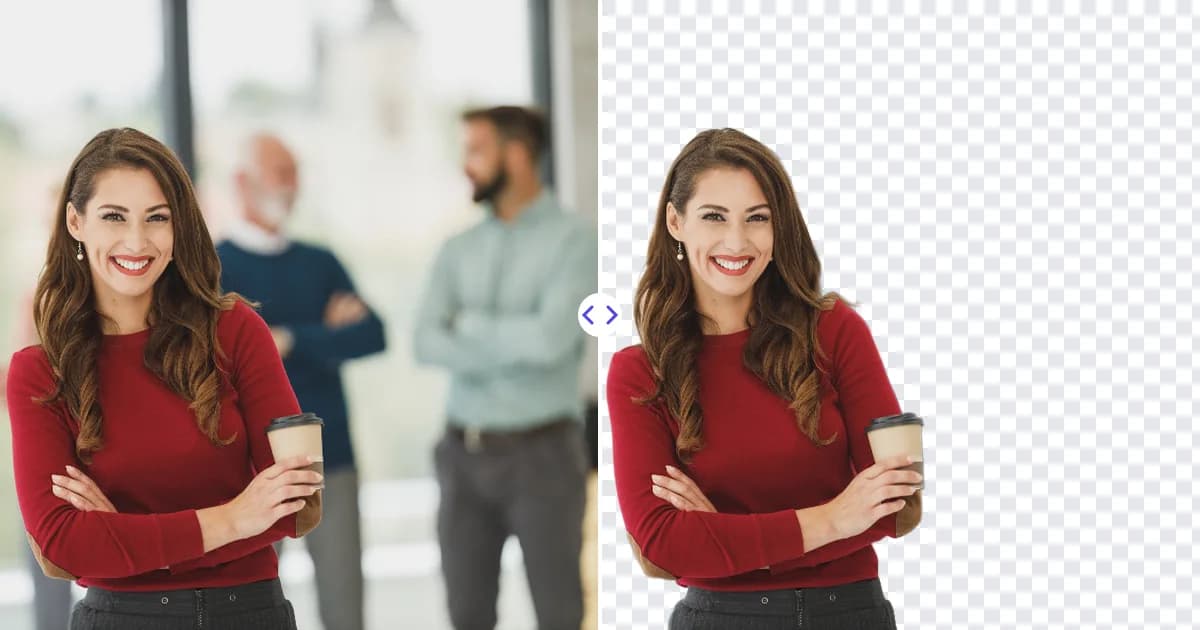
A headshot background remover turns a good portrait taken in an ordinary room into a professional-looking headshot. Upload your photo to the Remove Photo Bg background remover, and the AI cuts out your head and shoulders, including the edges of your hair, and removes the room behind you. You download a transparent PNG and place it on a clean, neutral or brand-colored background for LinkedIn, your resume, a speaker bio or your company's team page.
Why the background makes or breaks a headshot
People notice faces first, but the background sets the tone. A kitchen, a car interior or a busy office behind you reads as casual. A plain, softly colored backdrop reads as professional and keeps attention on your expression. Changing only the background is often all it takes to make a well-lit, sharp portrait suitable for business use.
How to create a professional headshot
- Take or choose a portrait. Pick a sharp photo with good light on your face, framed from roughly mid-chest up.
- Remove the background. Upload the JPG, JPEG, PNG or WEBP file (up to 16 MB) to the headshot background remover.
- Review the hair and shoulders. Zoom in on flyaway hair, glasses and the outline of your clothing.
- Add a new backdrop. In Canva, Photoshop, GIMP or PowerPoint, place the transparent PNG on a solid color or soft gradient, crop, and export.
Choosing a background color
The right color flatters you and fits where the photo will appear:
- Light gray or off-white is neutral, timeless and works on almost any website or document.
- Soft blue or slate feels calm and corporate, and suits finance, tech and consulting profiles.
- Your brand color, toned down slightly, ties team photos to your company identity.
- A subtle gradient, lighter behind your head, mimics studio lighting and adds depth.
Pick a color that contrasts with your hair and clothing. Dark hair on a dark background loses its outline; a mid-tone background usually works for most people.
Tips for a better headshot cutout
- Face soft light. Stand facing a window or use diffused light, so your face is evenly lit without harsh shadows.
- Step away from the wall. Distance between you and the background keeps shadows off it and makes your outline clearer.
- Contrast your hair with the wall. Blonde hair against a beige wall or dark hair against a dark door is harder to separate cleanly.
- Shoot at eye level. A camera slightly above or at eye height is the most natural angle; avoid low angles.
- Use the full-resolution file. Fine hair detail depends on pixels. A compressed copy from a chat app gives softer edges.
Hair is the hardest part of any portrait cutout. Our guide on how to cut out hair in photos explains what helps and why.
Consistent headshots for a whole team
Team pages look best when every portrait matches, even when photos were taken in different places at different times. Background removal makes that possible:
- Ask each person for a well-lit portrait framed the same way.
- Remove each background with the tool.
- Place every cutout on the same background color and canvas size.
- Align heads at the same height and scale so faces appear similar in size.
The result looks like one coordinated photo session without booking a photographer for everyone.
Polishing the final image
If a small distraction remains, such as a stray object touching your shoulder in the original, you can remove it with the object remover. If the portrait is too small for a large banner or a printed bio, enlarge it 4× with the image upscaler.
Need a photo for a social avatar instead? See the profile picture background remover. For the full picture of taking a portrait yourself, read how to create a professional headshot at home.
Why use AI for headshot backgrounds
A studio session costs time and money, and cutting around hair manually takes real skill. The AI gives you a clean portrait cutout in the browser, on desktop or mobile, from a photo you already have. It is free to use, and your portrait is processed on our own servers rather than sent to third-party AI services.
Upgrade your profile photo: upload your portrait and remove the background.