Remove Text from Image - Erase Captions, Labels and Overlays
Remove text from an image with an AI eraser. Brush over captions, labels or overlay text and the AI fills the area with matching background in seconds.
4 min read
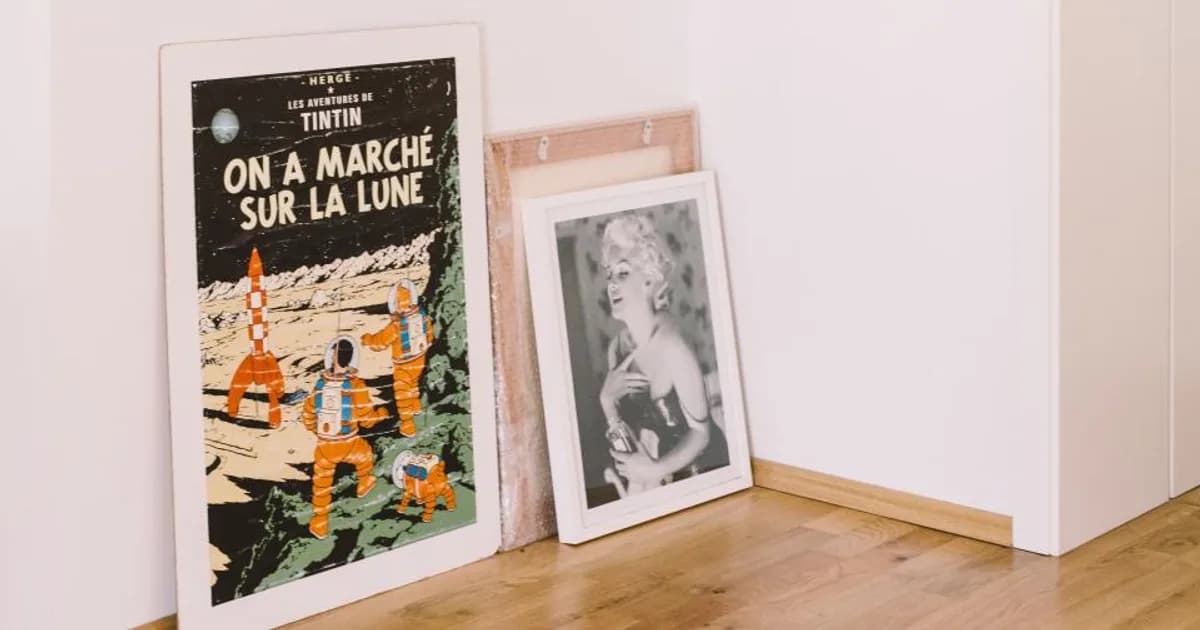
To remove text from an image, upload it to Remove Photo Bg, brush over the words you want gone, and the AI fills the area with background that matches the surrounding pixels. Captions, labels, overlay text and handwritten notes can disappear in a few strokes, leaving a clean picture you can reuse.
Text gets in the way when you want to reuse an image: a caption baked into a photo, a price tag on a product shot, or a note scribbled on a scanned picture. Retyping or cropping is not always an option, but erasing is.
How text removal works
The tool uses AI inpainting. You mark the text with a brush, the AI analyzes the colors, gradients and textures around it, and then generates new pixels to fill the marked area. Because text is usually thin, the surrounding background gives the AI plenty of context, which makes text one of the easier things to remove cleanly.
Learn more about the technique in what is AI inpainting.
How to remove text from an image in 4 steps
- Upload the image. Open the text and object remover and upload a JPG, PNG or WEBP file up to 16 MB.
- Brush over the text. Choose a brush size slightly larger than the letter height and paint over the words, including any outline or drop shadow.
- Let the AI fill the area. The text is replaced with background generated from its surroundings.
- Review and download. Zoom in to check for leftover fragments, brush over them if needed, and download the clean image.
Types of text you can remove
- Captions and overlay text added to photos or memes.
- Labels and price tags on product photos.
- Signs and street lettering in travel or real estate photos.
- Handwriting on scanned photos and documents you own.
- Date stamps from older cameras; see our page to remove a date stamp from a photo.
- Text on screenshots such as names or notes you do not want to share.
Tips for clean results
Plain backgrounds are easiest
Text on sky, a solid color, a wall or a smooth gradient disappears very naturally. Text over faces, detailed patterns or other text is harder, because the AI has to invent the detail underneath.
Cover outlines and shadows
Many overlay styles add a stroke or shadow around letters. Include these in your brush stroke, or faint ghost letters may remain.
Remove long text line by line
For a paragraph or several lines of text, erase one line at a time and check the result. Smaller areas give the AI better context and a more seamless fill.
Keep the original file
Save a copy of the original image before you start. If you later need the text again, or want to try a different brush stroke, you can go back to the untouched version instead of working on top of an edited one.
Upscale small images afterward
If the cleaned image is small, enlarge it with the AI image upscaler to restore sharper detail for reuse.
For more techniques and examples, see our guide on how to remove text from an image.
Use responsibly: watermarks and copyright
Only remove text from images you own or have permission to edit. Watermarks and credit lines often protect a photographer's or company's copyright, and removing them from someone else's work to reuse it can violate copyright law and platform rules. If you want to use a watermarked image, license it from the owner instead.
Who removes text from images
- Marketers and designers reusing their own graphics with new messaging.
- Online sellers cleaning old labels and prices from product photos.
- Content creators removing outdated captions from their own images.
- Families cleaning handwritten notes and marks from scanned prints.
- Anyone sharing screenshots who needs to hide personal details first.
Why use Remove Photo Bg to remove text
Erasing text with a clone tool means rebuilding background letter by letter. The AI eraser handles the fill for you, works in any modern browser on desktop and mobile, and is free to use. Images are processed on our own servers rather than third-party AI services, which is reassuring when your screenshots or scans contain personal details.
Have an image with words in the way? Remove the text from your image now and get a clean version in seconds.