AI Image Upscaler - Enlarge Photos 4x with Sharper Detail Online
Free AI image upscaler that enlarges JPG, PNG and WEBP images 4x and restores sharper edges and texture. Works in your browser on desktop and mobile.
4 min read
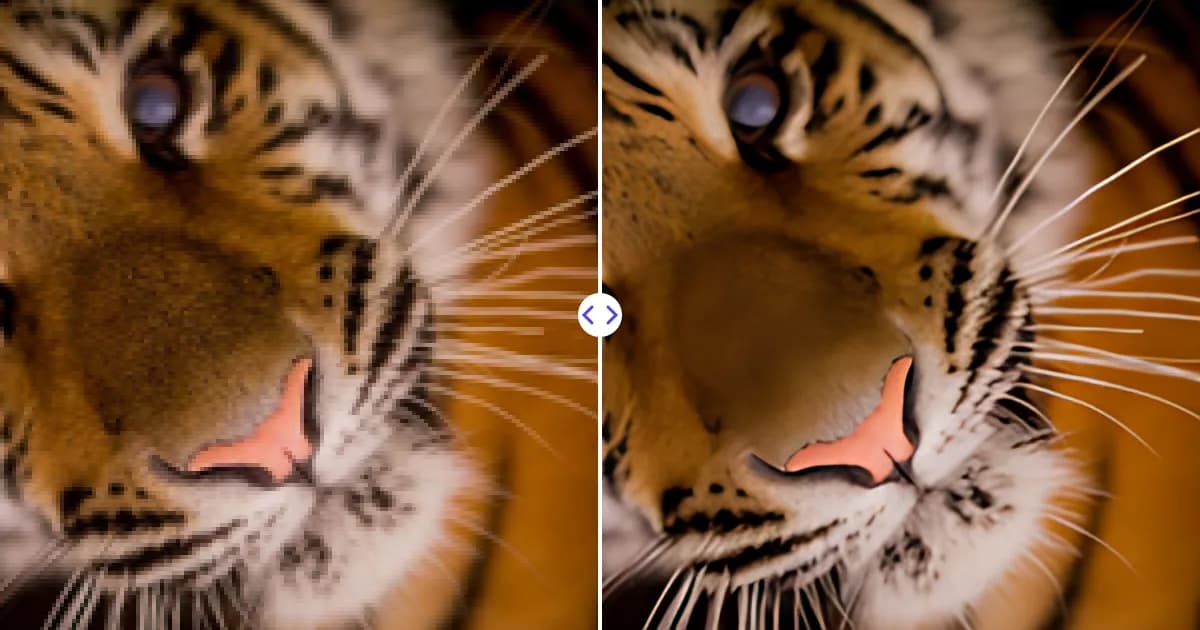
The Remove Photo Bg AI image upscaler enlarges your image four times in width and height and sharpens it at the same time. Upload a JPG, PNG or WEBP file, wait a moment, and download a larger, cleaner version that is ready for print, web or further editing.
It is free, runs in any modern browser on desktop or mobile, and accepts files up to 16 MB.
What an AI image upscaler does
Traditional resizing, the kind built into most image viewers, stretches existing pixels and fills the gaps by averaging neighbors. The result is bigger but soft and blurry, and small images turn into visible blocks.
An AI upscaler works differently. It uses a neural network trained on many pairs of low- and high-resolution images, so it has learned what sharp edges, textures and fine lines typically look like. When it enlarges your image, it predicts plausible detail for the new pixels instead of just blurring between old ones.
It is worth being clear about the limits: the AI cannot recover information that the camera never captured. A face that is ten pixels wide will not become a recognizable portrait. What the upscaler does very well is make reasonably good images larger and crisper, reduce compression noise, and clean up jagged edges. For the theory, read what AI image upscaling is.
When you need an upscaler at all
If an image already has enough pixels for where it will be shown, you do not need to upscale it; scaling down always looks fine. An AI upscaler earns its place when the image is smaller than the space it has to fill: a thumbnail you want to use as a banner, a cropped photo you want to print, or a web image that looks soft on a large, high-density screen. In those cases, the difference between plain resizing and AI upscaling is easy to see side by side.
How to use the AI image upscaler
- Open the tool. Go to the image upscaler.
- Upload your image. Choose a JPG, JPEG, PNG or WEBP file up to 16 MB.
- Let the AI enlarge it. The image is upscaled 4x and sharpened on our servers.
- Download the result. Compare it with the original and save the enlarged file.
Key features
- 4x enlargement: width and height are each multiplied by four, for example 1000 px becomes 4000 px. Output is capped at 4096 px on the longest side.
- Detail restoration: edges, text and textures come out sharper than with standard resizing.
- Common formats: JPG, JPEG, PNG and WEBP input.
- Private processing: images are processed on our own servers and are not sent to third-party AI services.
- Any device: works in the browser on Windows, Mac, Android and iPhone.
What you can upscale
Photos
Old digital camera shots, cropped phone photos and images saved from messages often look fine on a phone and soft on a monitor. Upscaling gives them more pixels for larger screens and prints.
Product images
Marketplaces and online stores often require a minimum image size, and zoom features need large files. Upscaling a small supplier photo can help it meet those requirements.
Logos and graphics
Low-resolution logos with jagged edges are a common problem. See our dedicated page on how to upscale a low-resolution logo.
Artwork and illustrations
Digital drawings, AI-generated art and scanned sketches can be enlarged for posters, wallpapers or prints.
Tips for better upscaling results
- Start from the original file. Images that have been forwarded, screenshotted or re-saved many times lose detail each time.
- Fix other issues first. Remove distracting objects with the object remover or cut out the subject with the background remover before upscaling, so you enlarge the final composition.
- Mind the output limit. An image already larger than about 1024 px on its longest side will reach the 4096 px cap; very large inputs gain less.
- Check faces and text. AI-generated detail is a prediction. Zoom in on important areas before you print.
Choosing the right upscaling page
Different goals need slightly different advice. If you want more pixels for a specific size, read increase image resolution. If you care most about sharpness and noise, see improve image quality. For poster and canvas prints, see enlarge an image without losing quality.
Try the AI image upscaler
Upload an image to the upscaler and get a 4x larger, sharper version in your browser, free.