Enlarge Image Without Losing Quality - AI Upscaling for Print
Enlarge an image without losing quality for prints, posters and canvas. AI upscales 4x with sharp detail. See print sizes and tips for clean enlargements.
4 min read
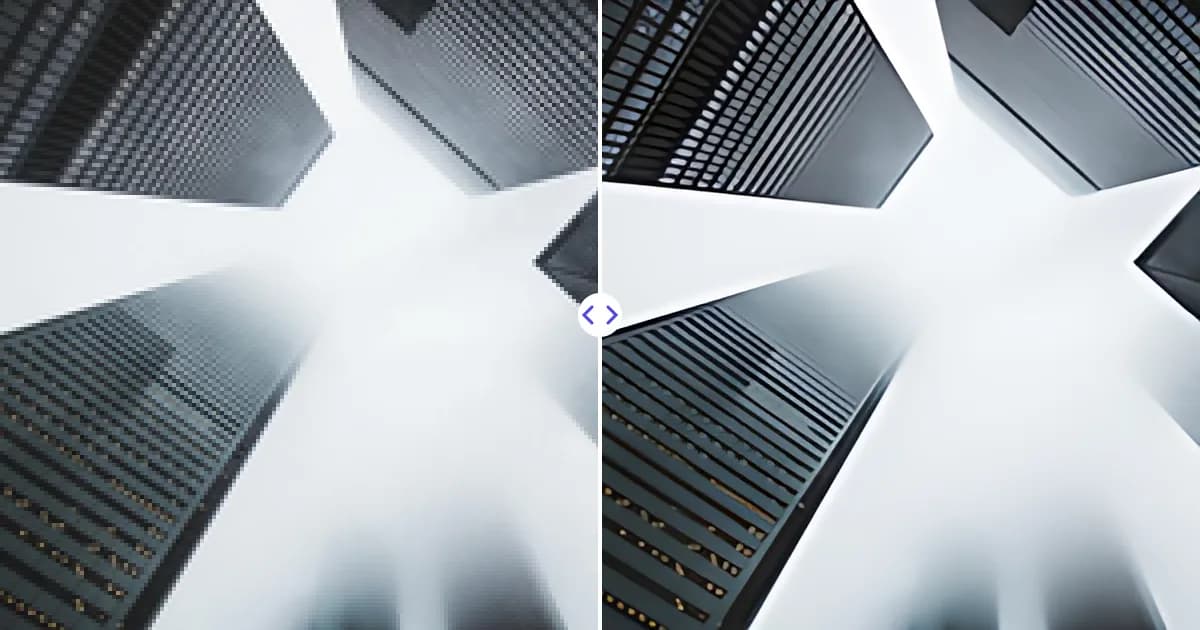
To enlarge an image without losing quality, use AI upscaling instead of simple resizing. Upload your photo to the Remove Photo Bg image upscaler, and it is enlarged 4x in width and height with sharp edges and restored texture, ready for printing or large displays.
It is free, works in any modern browser, and accepts JPG, JPEG, PNG and WEBP files up to 16 MB.
Why images lose quality when enlarged
A photo is a fixed grid of pixels. When you make it bigger in a normal editor or print it larger than its pixel count supports, the software has to invent the extra pixels by averaging neighbors. The image gets softer, edges get fuzzy and, at larger sizes, individual pixels become visible as blocks.
AI upscaling avoids most of that softness. A trained model predicts what sharp edges and fine textures should look like at the larger size, so the enlargement looks crisp rather than smeared. To be precise about the promise: the AI cannot add real detail that was never photographed. It reconstructs plausible detail, which on most photos looks natural and keeps the enlargement from looking degraded.
How to enlarge an image without losing quality
- Start with your best file. Use the original from your camera or phone, not a compressed copy from a chat app.
- Upload it to the upscaler. Open the image upscaler and choose your JPG, JPEG, PNG or WEBP file.
- Let the AI enlarge it 4x. The image is upscaled and sharpened on our servers.
- Download and prepare for print. Save the enlarged image and place it in your print layout at the size you need.
How big can you print?
Print quality depends on pixels per inch (PPI). Around 300 PPI is the standard for photos viewed up close; 150 to 200 PPI is often fine for posters seen from a distance. The upscaler outputs up to 4096 px on the longest side, which gives you roughly these maximum print sizes:
| Viewing distance | PPI | Longest side at 4096 px |
|---|---|---|
| Handheld photo, album | 300 | about 13.6 in (34.7 cm) |
| Framed print on a wall | 200 | about 20.5 in (52 cm) |
| Poster viewed from a few feet | 150 | about 27.3 in (69 cm) |
A common target is an 8 x 10 in print at 300 PPI, which needs 2400 x 3000 px. A 600 x 750 px source reaches that after a 4x upscale. For more detail on print preparation, read how to prepare images for print.
Tips for clean enlargements
- Do not trust the DPI field alone. Changing DPI in file settings does not add pixels; only upscaling does. See DPI vs PPI vs resolution.
- Retouch before you enlarge. Remove dust, spots or unwanted objects with the object remover first, so flaws are not enlarged with the rest.
- Crop for the print ratio after upscaling. That keeps the most pixels in the final crop.
- Order a small test print. For an expensive canvas or large poster, print a section at final size to check sharpness.
- Inspect faces at 100%. AI-predicted detail on very small faces may differ slightly from the real person; choose a source where faces are reasonably large.
What you can enlarge
Photos for wall art
Holiday shots, landscapes and family photos taken on older phones become usable for framed prints and canvas.
Posters and flyers
Event images, product shots and illustrations can be enlarged to fit poster layouts without obvious pixelation.
Scanned prints
Small scanned photos can be enlarged for reprints. If the scan has scratches or specks, clean them up first; our guide on cleaning up old photos walks through it.
Digital art and AI-generated images
Illustrations and AI-generated pictures are often created at around 1024 px, which is too small for a quality print. A 4x upscale takes them to the 4096 px limit, enough for a sharp print of roughly 13 inches on the long side at 300 PPI, or larger for a poster viewed from a distance.
When enlargement has limits
Very tiny images, for example under 200 px, contain so little information that even a 4x enlargement only reaches 800 px, and the predicted detail is mostly guesswork. Heavy motion blur also cannot be undone. In those cases, look for a larger original or reduce the final print size.
Enlarge your image now
Upload your photo and download a 4x larger, sharp version ready for print, free in your browser.