Increase Image Resolution Online - More Pixels with AI Upscaling
Increase image resolution online: turn a small photo into one with 4x the width and height. Learn how many pixels you need and how AI adds sharp detail.
4 min read
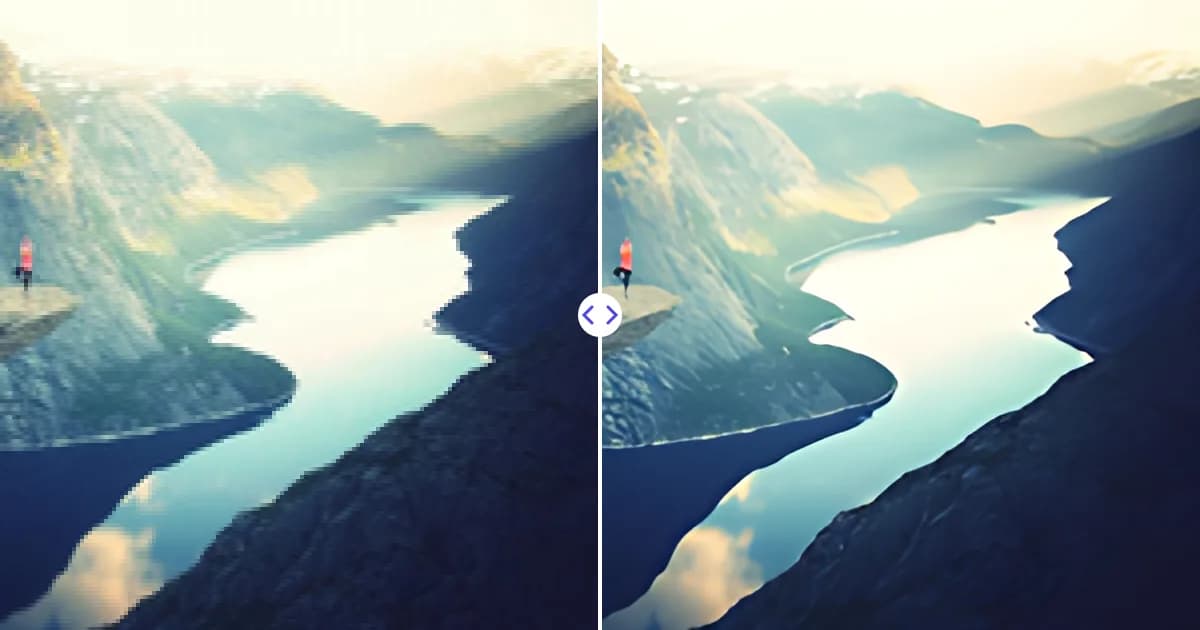
To increase image resolution, upload your picture to the Remove Photo Bg image upscaler. It multiplies the width and height by four, so a 600 x 400 px photo becomes 2400 x 1600 px, and the AI fills the new pixels with sharp, plausible detail instead of blur.
It is free, works in any modern browser, and accepts JPG, JPEG, PNG and WEBP files up to 16 MB.
What image resolution actually means
For digital images, resolution is the number of pixels: width times height. A 1920 x 1080 image has about 2 million pixels; a 4000 x 3000 image has 12 million. More pixels mean the image can be shown larger or printed bigger before individual pixels become visible.
You will also see DPI or PPI values in file properties. Those are only instructions for how densely to print the pixels; changing the DPI number does not add any detail. To genuinely increase resolution you need more pixels. Our article on DPI vs PPI vs resolution explains the difference in detail.
How to increase image resolution
- Open the upscaler. Go to the image upscaler page.
- Upload your image. Choose a JPG, JPEG, PNG or WEBP file up to 16 MB.
- Let the AI upscale it. The image is enlarged 4x in each dimension and sharpened.
- Download the high-resolution file. Check the new pixel dimensions and use it wherever you need more size.
How many pixels do you need?
Work backward from where the image will be used. Here are common targets and the smallest source image that reaches them with a 4x upscale:
| Target use | Pixels needed | Minimum source for 4x |
|---|---|---|
| Full HD screen or video frame | 1920 x 1080 | 480 x 270 |
| 4K UHD wallpaper | 3840 x 2160 | 960 x 540 |
| 4 x 6 in print at 300 PPI | 1200 x 1800 | 300 x 450 |
| 8 x 10 in print at 300 PPI | 2400 x 3000 | 600 x 750 |
| Website hero image | about 2000 px wide | about 500 px wide |
The output is capped at 4096 px on the longest side, so very large source images are scaled to fit that limit.
Why AI does better than standard resizing
When you resize in a basic editor, the software invents new pixels by averaging their neighbors (bilinear or bicubic interpolation). Edges get soft, and compression blocks become larger blocks. An AI upscaler has learned from many pairs of small and large images what fine edges, hair, fabric and text tend to look like, and it predicts that structure for the new pixels.
That said, AI upscaling reconstructs; it does not uncover. If a detail was never captured, such as a license plate that was only a few pixels across, the model can only produce a guess. Treat the result as a sharper, larger version of what you had, not as hidden information revealed.
There is also a practical side to more pixels: file size. A 4x upscale has 16 times as many pixels, so the downloaded file is noticeably larger than the original. That is what you want for print or editing. For a website, export a copy at the display size you actually need, which keeps pages fast while still benefiting from the sharper AI result. Our guide on compressing images without losing quality explains how.
Tips for getting the most resolution from your image
- Use the original file. Download the full-size image from your camera, cloud storage or the sender rather than a messenger thumbnail.
- Avoid repeated re-saving. Each JPEG save adds compression artifacts that the AI may sharpen along with real detail.
- Crop after upscaling when possible. Upscaling the whole frame and then cropping keeps more detail in the final crop than cropping a tiny area first.
- Inspect important details. Zoom in on faces and text before sending a file to print.
When to increase image resolution
- An image is rejected by a website or marketplace for being too small
- A photo looks pixelated on a large monitor or TV
- You want to print a cropped photo at a usable size
- A design template needs a larger image than you have
If your image is not only small but also blurry or noisy, the improve image quality page focuses on that side. For a broader walkthrough, read how to increase image resolution.
Increase your image resolution now
Upload your image and download a version with four times the width and height, free and in your browser.