Improve Image Quality Online - Sharper, Cleaner Photos with AI
Improve image quality online: reduce blur, jagged edges and compression artifacts while enlarging your photo 4x with AI. Free for JPG, PNG and WEBP.
4 min read
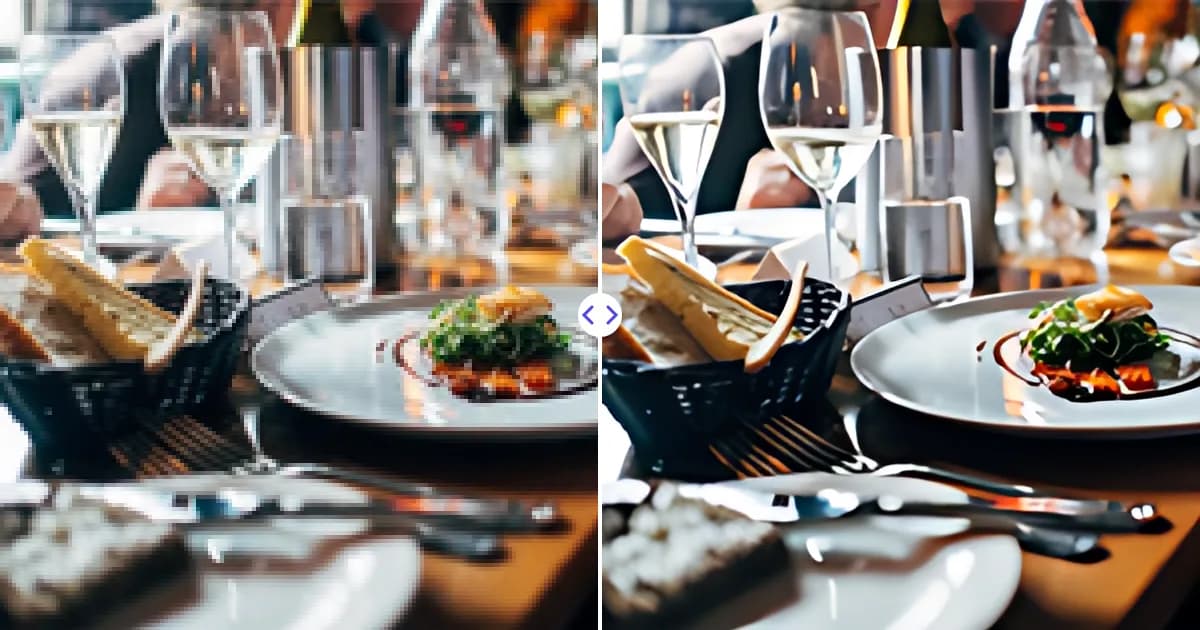
To improve image quality, upload your photo to the Remove Photo Bg AI image upscaler. Along with enlarging the image 4x, the AI sharpens soft edges, cleans up blocky compression artifacts and smooths jagged lines, so the result looks clearer at any size.
It is free, works in your browser on desktop and mobile, and supports JPG, JPEG, PNG and WEBP up to 16 MB.
What makes an image look low quality
Image quality problems usually come from a few common causes. Knowing which one you have helps you set realistic expectations:
- Low resolution: too few pixels, so the image looks soft or blocky when shown large.
- Compression artifacts: blocks, banding and halos around edges from heavy JPEG or messenger compression.
- Jagged edges: stair-stepped lines on text, logos and diagonal edges.
- Noise: grainy speckles from low light or small phone sensors.
- Blur: from missed focus or camera shake.
AI upscaling handles the first three very well and can reduce moderate noise. Strong motion blur and badly missed focus are much harder: the information is smeared, and no tool can fully restore it.
How to improve image quality with AI
- Open the tool. Go to the image upscaler.
- Upload the photo. Choose your JPG, JPEG, PNG or WEBP file up to 16 MB.
- Let the AI process it. The model enlarges the image 4x and restores cleaner edges and texture.
- Compare and download. View the result at full size, then save it.
How AI improves quality
The upscaler uses a neural network trained on pairs of degraded and clean images. During training it learned how typical damage looks, such as compression blocks, softness and stair-stepped edges, and what the clean version usually looks like. When you upload a photo, it applies that knowledge to produce a cleaner, larger output.
Be aware that the added detail is generated. It is the model's best prediction of what a sharper version would look like, not a recovery of data that was lost. For most photos, graphics and screenshots this looks natural. For evidence-like uses, such as reading a blurry license plate, the output should not be trusted as fact.
What the tool does not change
Image quality is sometimes about exposure and color rather than sharpness. The upscaler does not brighten dark photos, fix white balance, straighten horizons or change the composition. If your picture is too dark or has a color cast, correct that first in your phone's photo editor or in software such as Photoshop or GIMP, then upscale the corrected file. Doing it in this order means the AI sharpens a well-exposed image instead of enlarging the problem. Likewise, the upscaler does not crop or reframe; it enlarges the whole image exactly as uploaded.
Tips to get the best quality
Find the best source first
The single biggest improvement is often starting from a better file. Images sent through chat apps and social networks are usually compressed. Ask the sender for the original or download it from cloud backup.
Avoid sharpening before upscaling
Heavy sharpening or filters applied beforehand create halos that the AI will treat as real detail and enlarge. Upload the most unprocessed version you have.
Clean up distractions separately
Quality is also about what is in the picture. Dust spots, small blemishes or a stray object can be removed with the blemish remover or the object remover before upscaling.
Resize down for the web afterward
If your goal is a crisp image on a website, upscale first and then export at the size you need. A downscaled AI result often looks sharper than the untouched original at the same size.
Where better image quality matters
- Online stores: crisp product photos make zoom features useful and look more trustworthy.
- Presentations and documents: images that look fine on a laptop can look rough on a projector.
- Social media: platforms recompress uploads, so starting with a clean file helps.
- Family photos: older digital pictures and scans gain clarity for albums and prints.
For step-by-step help with specific problems, read how to fix pixelated images. If the main issue is simply too few pixels, the increase image resolution page is the better starting point.
Improve your image quality now
Upload a photo and download a sharper, cleaner, 4x larger version, free and directly in your browser.