Remove Background from Signature - Transparent Signature PNG
Turn a photo or scan of your handwritten signature into a transparent PNG. Remove the paper background and add your signature cleanly to digital documents.
4 min read
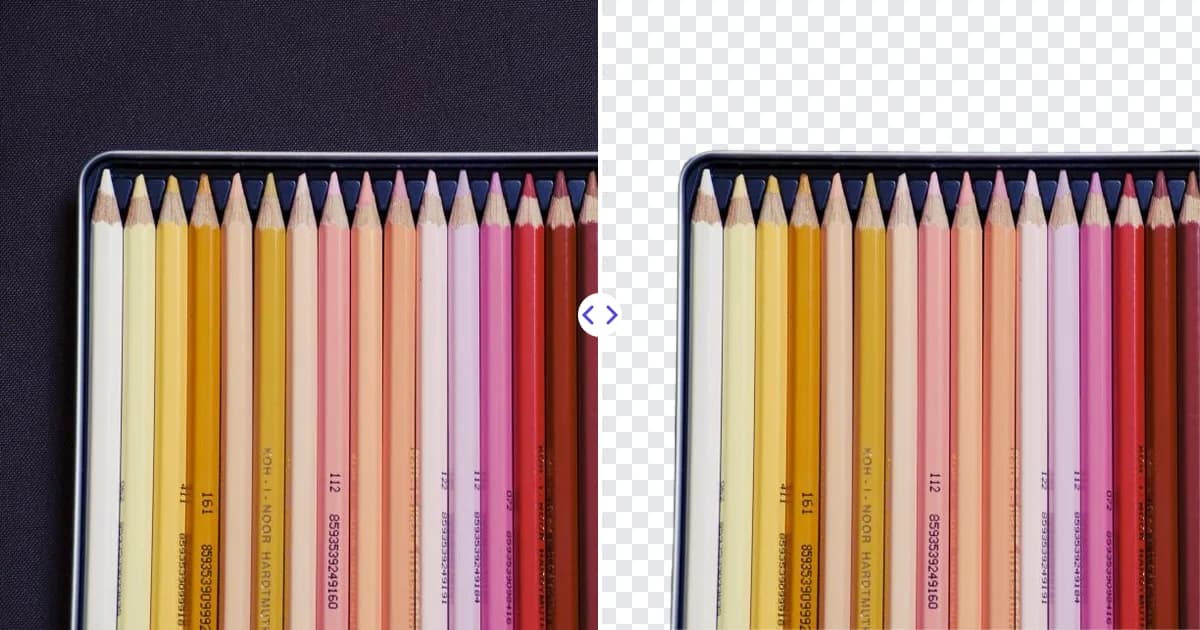
To remove the background from a signature, sign a sheet of plain paper, take a photo or scan of it, and upload the image to the Remove Photo Bg background remover. The AI keeps the ink strokes and removes the paper, so you get a transparent PNG of your handwritten signature. You can then place it on letters, forms and documents without a gray or white box around it.
Why a transparent signature looks better
A signature photo straight from the phone carries the paper with it: a slightly gray or yellow rectangle, shadows from your hand or phone, and sometimes the edge of the desk. Dropped onto a white document, that box is obvious. With the paper removed, only the ink remains, and the signature looks as if it was written directly on the page.
How to create a transparent signature
- Sign on clean paper. Use plain white, unlined paper and a pen with dark, solid ink.
- Capture it. Photograph the paper straight from above in good light, or scan it. Save as JPG, JPEG, PNG or WEBP (up to 16 MB).
- Remove the background. Upload the image to the background remover; the AI isolates the ink and clears the paper.
- Download and place. Save the transparent PNG and insert it into your document editor or PDF tool, resized to fit the signature line.
Tips for a crisp signature cutout
Choose the right pen
A black or dark blue felt-tip or gel pen gives strong, even lines. Ballpoint pens can leave faint, broken strokes that are harder to separate from the paper.
Sign larger than usual
Write your signature a bit bigger than you normally would. When it is scaled down on a document, the strokes look sharp instead of pixelated.
Light it evenly
Photograph near a window or under a bright ceiling light, and keep your phone's shadow off the paper. Even light makes the paper uniform, which makes the ink edges clearer.
Keep the camera parallel
Hold the phone flat above the page so the signature is not stretched or slanted. Crop out the desk and anything else around the paper before uploading.
Fix small or blurry images
If your only copy is a small crop, enlarge it with the image upscaler before removing the background so the edges stay smooth.
Where to use your signature PNG
- Letters and invoices created in Word, Google Docs or similar editors.
- PDF forms using a PDF editor's image or stamp feature.
- Email signatures for a personal touch below your name.
- Certificates and awards that need a handwritten sign-off.
- Artwork and photography, where a signature acts as a subtle mark of authorship.
The same approach works for company stamps and seals photographed on paper. Because paper is usually white or off-white, the tips on our remove white background page apply here too.
Using signature images responsibly
A picture of a signature is convenient, but treat it like a key:
- Only sign documents you are authorized to sign, and only with your own signature.
- Keep the PNG in a private folder rather than sharing it widely, and avoid posting it publicly.
- For contracts and legal documents, check whether a pasted signature image is enough, or whether a certified electronic signature service is required. Rules vary by country and by type of agreement.
- Consider placing the signature on documents as part of a flattened PDF so it cannot easily be copied back out.
Signature PNG vs scanned signature
| Scanned JPG | Transparent PNG | |
|---|---|---|
| Background | Paper color included | None, ink only |
| On colored documents | Visible box | Blends in |
| Over lines and text | Covers them | Lines show through |
To learn why PNG keeps transparency and JPG does not, see what is a transparent PNG, or visit the transparent PNG maker page for file-format tips.
Why use AI to cut out signatures
Selecting thin, looping pen strokes by hand is fiddly, and color-based tools often leave gray specks from the paper texture. The AI separates ink from paper automatically in any modern browser, on desktop or mobile. It is free to use, and your signature is processed on our own servers rather than by third-party AI services.
Digitize your signature: upload a photo of it and remove the background.