DPI vs PPI vs Resolution: What Each Term Really Means
DPI, PPI and resolution are often mixed up. Learn what each one measures, which matters for screens and print, and how to calculate the right image size.
5 min read
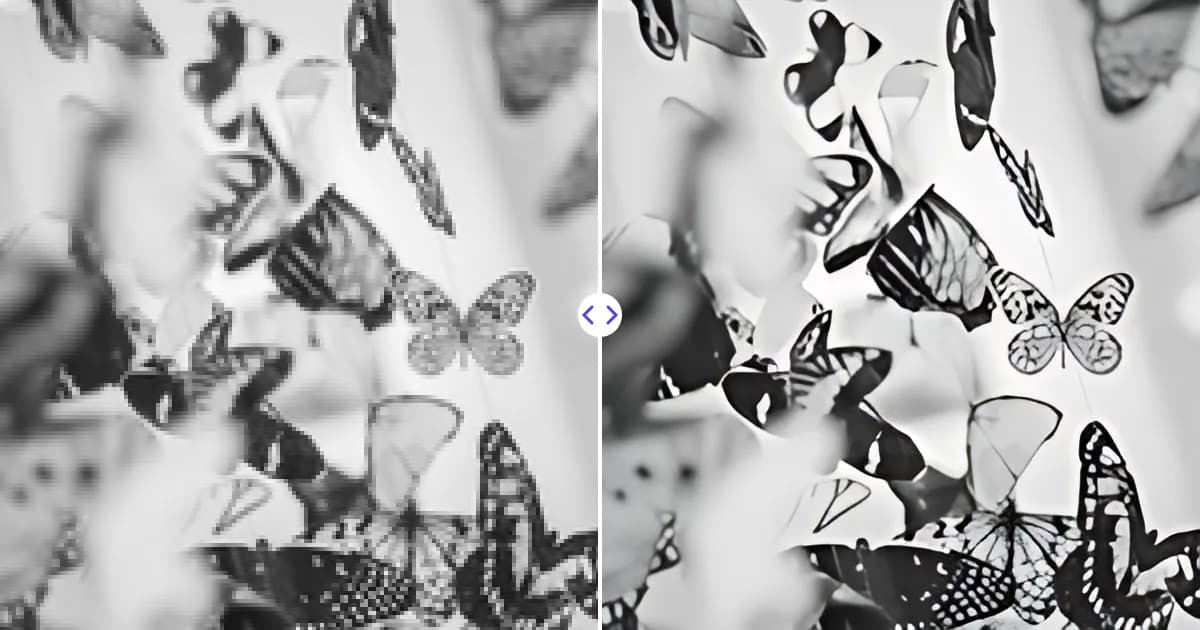
Resolution is the number of pixels in an image, PPI (pixels per inch) describes how densely those pixels are placed when the image is displayed or printed, and DPI (dots per inch) describes how many ink dots a printer lays down per inch. Pixel dimensions decide how much detail you have; PPI decides how large that detail prints; DPI is a property of the printer, not the file. Once you separate these three ideas, most confusion about image size disappears.
Resolution: the pixel count
A digital image is a grid of colored squares called pixels. Its resolution is written as width × height, for example 3000 × 2000 pixels. That number is the only thing that tells you how much detail the file can hold.
Resolution is sometimes also expressed as megapixels: 3000 × 2000 equals 6,000,000 pixels, or 6 megapixels. Megapixels are useful for comparing cameras, but for practical work the width and height matter more, because they tell you the shape and the maximum size you can use the image at.
Two important consequences:
- An image that is 800 pixels wide stays 800 pixels wide no matter what PPI or DPI value is written in its metadata.
- To truly increase resolution you have to add pixels, either by resampling or with AI upscaling. Our guide on how to increase image resolution covers both methods.
PPI: pixels per inch
PPI connects pixels to physical size. It answers the question: if I print this image, how many of its pixels should fit into one inch?
The calculation is simple:
Print size in inches = pixel dimension ÷ PPI
A 3000 × 2000 pixel image printed at 300 PPI comes out at 10 × 6.67 inches. The same file at 150 PPI prints at 20 × 13.3 inches, with each pixel twice as large and therefore more visible up close.
PPI is stored as a number in many image files, but changing it without resampling only changes the intended print size. The pixels themselves stay exactly the same. That is why setting an image to 300 PPI in an editor does not make it sharper.
PPI on screens
Screens also have a pixel density, sometimes quoted as PPI. A phone might pack several hundred pixels into an inch, while a large desktop monitor packs fewer. On screens, though, the PPI value saved in an image file is ignored. A website shows an image according to its pixel dimensions and the layout, so for web use only pixel dimensions matter.
DPI: dots per inch
DPI comes from printing. Inkjet and laser printers create colors by placing many tiny dots of a few ink colors. To reproduce a single image pixel, a printer typically uses several dots, so printer DPI values are usually much higher than image PPI values.
In everyday language, people often say DPI when they mean PPI. A print shop that asks for a 300 DPI file nearly always means an image with enough pixels to print at 300 pixels per inch at the requested size. When you hear DPI in the context of a file you are sending, read it as PPI.
DPI is also used for scanners, where it describes how many samples per inch the scanner captures. Scanning a 4 × 6 inch photo at 600 DPI produces an image of 2400 × 3600 pixels, so scanner DPI directly determines the resolution of the resulting file.
Side-by-side comparison
| Term | Measures | Belongs to | Matters for |
|---|---|---|---|
| Resolution | Total pixels (width × height) | The image file | Everything: web, print, cropping |
| PPI | Pixels per inch of output | The image when printed or displayed | Print size and print sharpness |
| DPI (printer) | Ink dots per inch | The printer | Printer output quality |
| DPI (scanner) | Samples per inch | The scanner | Resolution of the scanned file |
How much resolution do you need?
For print
A common guideline is 300 PPI for photos and documents viewed at reading distance, such as prints, flyers and brochures. Larger items viewed from farther away need less density: posters often look fine at around 150 PPI, and billboards far lower. Always check the exact requirement with your print provider.
To find the pixel size you need, multiply the print size by the target PPI:
- 4 × 6 inch photo at 300 PPI: 1200 × 1800 pixels
- 8 × 10 inch print at 300 PPI: 2400 × 3000 pixels
- 18 × 24 inch poster at 150 PPI: 2700 × 3600 pixels
For a full walkthrough, including bleed and color, read how to prepare images for print.
For the web
Ignore PPI and DPI entirely. Size the image in pixels to match how large it will appear, and consider about twice that width for sharp display on high-density screens. Then compress it sensibly; our guide on compressing images without losing quality explains how.
Common myths
- Myth: 72 DPI is the web standard. The PPI value in a file has no effect on how browsers display it. Only pixel dimensions count.
- Myth: Saving at 300 DPI makes an image high resolution. It only changes metadata. A small image set to 300 PPI simply prints small.
- Myth: A bigger file size means better resolution. File size also depends on format and compression. A heavily compressed large image can be smaller than a lightly compressed small one.
When your image does not have enough pixels
If the math shows your image is too small for the print size you want, you have three options: print smaller, accept a lower PPI if the viewing distance allows it, or increase the pixel count. AI upscaling is the most effective way to do the last one. The Remove Photo Bg image upscaler enlarges JPG, PNG and WEBP images 4×, with output up to 4096 pixels on the longest side, which is enough for roughly a 13.6-inch print on its longest edge at 300 PPI.
Upscaling cannot create the real detail a better camera would have captured, but it reconstructs edges and textures far better than standard resizing. Try it with your own file at the free image upscaler and check the result before sending it to print.