Upscale Low Resolution Logo - Sharper Edges for Web and Print
Upscale a low resolution logo 4x with AI to smooth jagged edges and sharpen text. Then make it transparent. Free for JPG, PNG and WEBP logo files.
4 min read
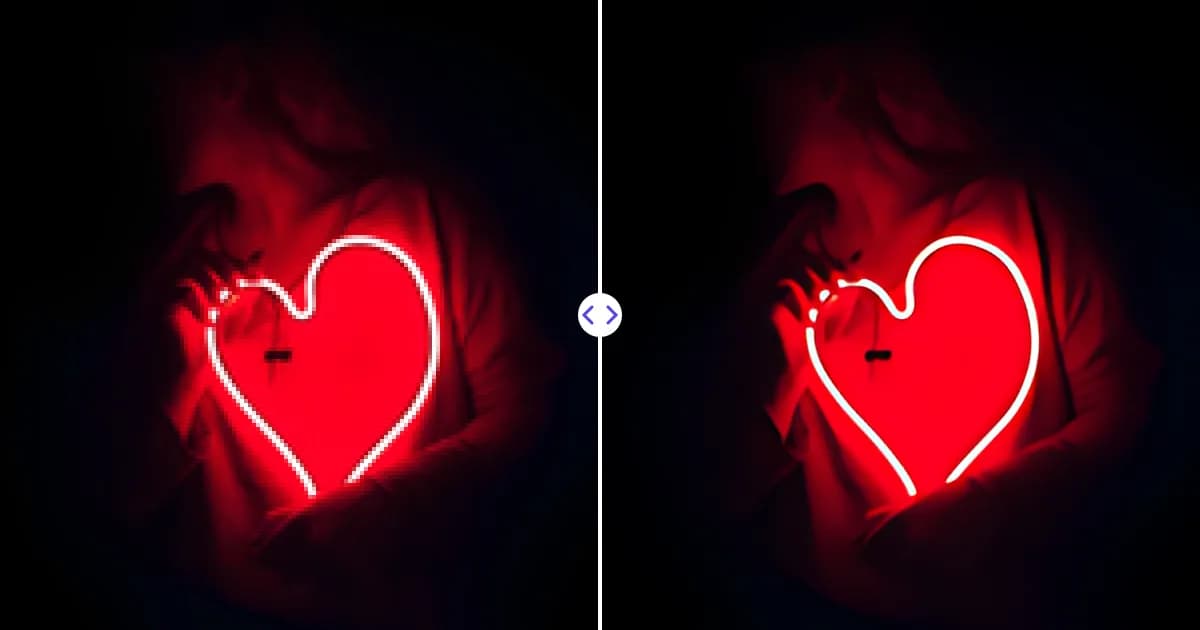
To upscale a low resolution logo, upload the file to the Remove Photo Bg image upscaler. The AI enlarges it 4x and cleans up jagged edges, blurry lettering and compression blocks, giving you a sharper raster logo you can use on websites, documents and small print jobs.
It is free, runs in your browser, and accepts JPG, JPEG, PNG and WEBP files up to 16 MB.
Why logos end up low resolution
Many small businesses only have their logo as a small image: a file pulled from an old website, a social media avatar, an email signature, or a screenshot. Once that logo is placed on a banner, a slide or a sign, the edges look stair-stepped and the text turns fuzzy.
Logos are a special case among images. They have flat colors, hard edges and lettering, and any blur is immediately visible. That is also why they respond well to AI upscaling: the model is good at predicting clean, crisp edges where the original only had a few pixels of transition.
How to upscale a low resolution logo
- Find the largest version you have. Check old emails, the website source, or social profiles for the biggest copy of the logo.
- Upload it to the upscaler. Open the image upscaler and select the file.
- Let the AI enlarge it 4x. Edges and lettering are sharpened while the logo is enlarged.
- Download and check. Zoom in on text and fine shapes, then save the high-resolution version.
Make the upscaled logo transparent
Logos are most useful with a transparent background so they can sit on any color. After upscaling, run the enlarged file through the logo background remover to get a transparent PNG. Doing it in this order means the background removal works on the sharper, larger version, which gives cleaner edges. Our guide how to make a logo transparent covers the details.
Tips for upscaling logos
- Avoid screenshots of screenshots. Every capture and re-save adds blur and color shifts that the AI will also enlarge.
- Prefer PNG sources. PNG keeps flat color areas clean, while JPEG adds visible blocks around text and edges.
- Crop away extra space first. If the logo sits in a large empty canvas or on a photo, crop it tightly before upscaling so the 4096 px output limit is spent on the logo itself rather than on empty background.
- Check small text closely. If letters were only a few pixels tall, the AI has to guess their exact shape. Compare against your brand name and other materials.
- Watch your brand colors. Upscaling aims to preserve colors, but if exact color values matter, verify them in an editor afterward.
Raster upscale vs. vector logo
An upscaled logo is still a raster image made of pixels. It will be much sharper than the original, and with output up to 4096 px on the longest side it covers websites, presentations, social media, documents and most small to medium prints.
For very large formats such as vehicle wraps, shop signs or embroidery, printers usually ask for a vector file (SVG, AI, EPS or PDF) that can scale infinitely. The upscaled image is an excellent, clean reference for a designer to redraw the logo as a vector, which is much easier than tracing a blurry original.
Keep in mind that the AI predicts edges and letter shapes from what it can see. On a clean source, the upscaled logo is faithful to the original. On a heavily blurred source, small details such as thin serifs, tiny icons or a tagline in small type can come out slightly different from the real design. Always compare the result with printed materials, packaging or anything else that shows the logo at a larger size, and fix any differences before using it in public.
Where a sharper logo makes a difference
- Website headers and favicons for high-density screens
- Presentation slides and proposals
- Email signatures and letterheads
- Social media profile and cover images
- Business cards, flyers and stickers
- Product packaging mockups and listing images
Upscaling the logo is often part of a bigger cleanup. If you also need to pull a logo off a photo or a scanned document, the signature background remover page uses a similar approach for line art and ink.
Upscale your logo now
Upload your logo and download a 4x larger version with crisp edges, free in your browser.