Remove Blemishes from Photo - Quick Spot Fixes with an AI Eraser
Remove blemishes from photos: spots, dust, scratches and small marks on skin or objects. Brush over them and AI blends the area naturally. Free to use.
4 min read
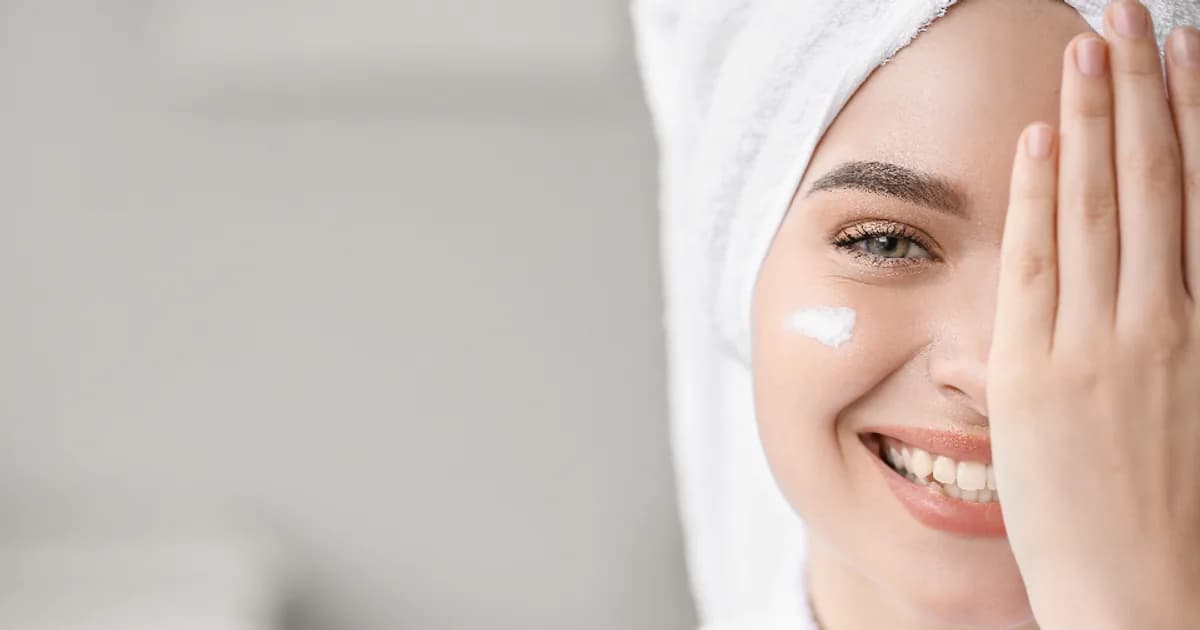
To remove blemishes from a photo, upload it to the Remove Photo Bg object remover, dab the brush over each spot and let the AI replace it with the surrounding texture. It works like a spot-healing brush: small, targeted fixes that keep the rest of the image untouched.
The tool runs in your browser on desktop and mobile, supports JPG, JPEG, PNG and WEBP up to 16 MB, and is free to use.
What counts as a blemish
In photo editing, a blemish is any small, temporary mark that distracts from the subject. Typical examples:
- Pimples, small scratches or a stray mark on skin in a portrait
- Dust spots from a dirty camera sensor or lens, usually visible in skies
- Specks, lint and crumbs on product surfaces
- Scratches, dust and small stains on scanned prints
- Fingerprints and smudges on glossy objects
The object remover is designed for removing things, not for retouching a whole face. It does not smooth skin, change features or apply filters. That is a strength for natural-looking portraits: you remove only what you choose and everything else stays as captured.
How to remove blemishes from a photo
- Upload your image. Open the object remover and select the photo.
- Pick a small brush. Choose a size just a little larger than the spot. Small masks give the most natural fill.
- Dab over each blemish. Mark one or a few spots, apply, and let the AI blend them with the surrounding area.
- Review at full size and download. Zoom in to check skin texture and edges, then save the result.
Tips for natural-looking results
Keep masks tiny
The smaller the painted area, the more real texture surrounds it, and the better the fill matches. Covering a large patch of skin at once can make it look flat.
Leave character marks alone
Freckles, moles, scars and laugh lines are part of how someone looks. Professional retouchers usually remove temporary things like a pimple or a stray hair and keep permanent features. When editing someone else's portrait, ask them what they are comfortable with.
Watch edges and features
A spot right next to an eye, lip line or the edge of a product is harder to fix than one in the middle of a smooth area. Use the smallest brush that covers it and check the outline carefully.
Work from a sharp original
AI fills match the surrounding grain. If the photo is very blurry or heavily compressed, the repaired area may look slightly different from its neighbors. Use the best-quality file you have.
Fix spots in a few small rounds
Rather than marking every blemish at once, work through the image in rounds of a few spots each. After every round, zoom out to see the photo as a whole. This makes it easy to spot an area that looks too smooth or slightly off in color, and to redo just that one spot instead of starting over.
Use cases
Portraits and headshots. Remove a breakout or a small scratch before using a photo for a profile or CV. If you also need a clean backdrop, try the headshot background remover.
Product photos. Dust, lint and tiny scuffs are easy to miss during a shoot and very visible on a white listing image. Clean them up, then cut the product out with the product photo background remover.
Old scanned photos. Scans of prints often show dust, small scratches and specks. Spot removal is a quick first step; our guide how to clean up old photos covers the full process.
Landscapes. Sensor dust shows up as soft gray dots in skies, especially at small apertures. A few dabs remove them.
Why use an AI eraser instead of a clone tool
A clone stamp copies pixels from one place to another, which can create visible repeated patterns and takes practice. The AI eraser looks at the area around each spot and generates new texture that fits, so you do not need to choose a source point. For a handful of blemishes it is simply faster, and it works on a phone as well as on a desktop.
Images are processed on our own servers and are not sent to third-party AI services.
Clean up your photo
Open the object remover, dab away the spots and download a cleaner version of your photo.