Remove Background in Photoshop vs Online Tools: Which Is Better?
How to remove a background in Photoshop, how online AI tools compare, and when each approach makes sense for speed, control, cost and image quality.
5 min read
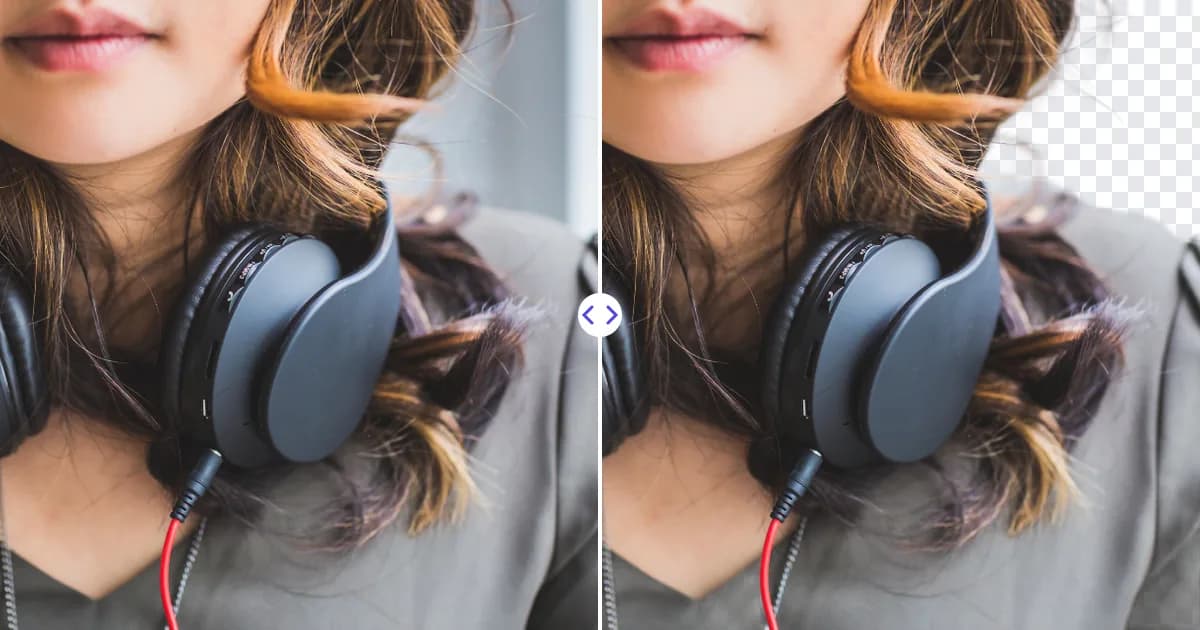
Photoshop gives you the most control when removing a background: its Remove Background quick action and Select Subject command produce an automatic mask that you can refine by hand. Online AI tools are faster and simpler, turning an upload into a transparent PNG in one step with no software or editing skills required. The best choice depends on how many images you edit, how complex they are, and how much manual control you need.
How to remove a background in Photoshop
Recent versions of Adobe Photoshop include AI-assisted selection features. Exact menus can change between versions, but the main workflows are well established.
Option 1: Remove Background quick action
- Open your image and make sure the layer is unlocked (if it says "Background", click the lock icon to convert it to a normal layer).
- Find Remove Background in the Properties panel under Quick Actions, or in the Contextual Task Bar.
- Photoshop detects the subject and adds a layer mask that hides the background.
- Inspect the edges and refine the mask with a brush: paint black to hide, white to reveal.
- Export as PNG to keep the transparency.
Option 2: Select Subject with Select and Mask
- Choose Select → Subject to create an automatic selection.
- Open Select and Mask to refine it. The Refine Hair and Refine Edge Brush tools help with hair and fur.
- Adjust settings such as smoothing, feathering and shifting the edge.
- Output the result as a layer mask and export as PNG.
Option 3: Manual tools
For hard-edged products, the Pen tool lets you draw precise paths that convert to clean selections. The Object Selection and Quick Selection tools are useful for selecting specific regions. These take longer but give exact control.
How online AI background removers work
An online tool such as Remove Photo Bg runs a segmentation model on its servers. You upload a photo, the AI detects the subject automatically and you download a transparent PNG. With Remove Photo Bg:
- JPG, JPEG, PNG and WEBP files up to 16 MB are supported.
- It works in any modern browser on desktop and mobile.
- It handles people, products, animals, cars, logos, signatures and objects.
- Images are processed on Remove Photo Bg's own servers rather than sent to third-party AI services.
- It is free to use.
For the technical background, read how AI background removal works.
Side-by-side comparison
| Photoshop | Online AI tool | |
|---|---|---|
| Skill needed | Moderate to advanced for refinement | None |
| Setup | Install software, subscription | Open a browser |
| Speed per image | Fast for automatic mask, slower with refinement | Fast |
| Manual edge control | Full | Limited or none |
| Non-destructive editing | Yes, with layer masks | Download is a finished file |
| Compositing and new backgrounds | Built in | Use the PNG in another editor |
| Works on any device | Desktop (and some mobile/web versions) | Yes |
When Photoshop is the better choice
- Complex composites. If you are building a layered design with multiple images, shadows and color grading, doing everything in Photoshop keeps the workflow in one place.
- Tricky edges. Fine hair against a busy background, semi-transparent fabric or glass often need manual refinement.
- Precise product outlines. Catalog work sometimes requires pen-tool paths for exact edges.
- Non-destructive edits. Masks let you revisit and adjust the cutout at any time.
- You already use Photoshop daily. The built-in features are fast for experienced users.
When an online tool is the better choice
- You don't have Photoshop or don't want to learn it.
- You need a quick, clean cutout for a listing, profile picture, slide or social post.
- You're on a phone or shared computer where installing software isn't an option.
- The photo is straightforward: a clear subject with reasonable contrast.
- You want the same result anywhere - at home, at work or on mobile.
Cost and time considerations
Photoshop is sold as a subscription, which makes sense if you already use it for photo editing, design or retouching every week. If background removal is the only thing you need, paying for and learning a full professional editor is a lot of overhead. The time cost matters too: the automatic mask in Photoshop is quick, but a careful refinement on a difficult portrait can take many minutes, while an online tool returns its result without any manual work. On the other hand, if an online result needs fixing, you have fewer options than with a mask you can paint on directly. A reasonable rule: if most of your images are straightforward and you need them quickly, start online; if most of them are demanding client work, plan for Photoshop.
A hybrid workflow
Many designers combine both. They generate the initial cutout with an online AI tool, then open the transparent PNG in Photoshop (or GIMP, Canva or another editor) to add a new background, shadows or text. Others start in an online tool for speed and only switch to Photoshop for the occasional difficult image.
Other AI tools fit into the same workflow:
- Use the object remover to erase distractions before cutting out the subject.
- Use the image upscaler to enlarge a small source 4× so edges come out cleaner.
Tips that improve results in both
- Shoot for separation. Contrast between subject and background helps every method. See how to take photos that are easy to cut out.
- Work from the highest-quality original. Avoid screenshots and heavily compressed copies.
- Zoom to 100% when checking edges.
- Check on dark and light backgrounds. Halos show up differently on each.
- Save as PNG. JPG discards transparency. Our PNG vs JPG vs WEBP guide explains why.
Other desktop alternatives
If you want manual control without Photoshop, GIMP is a free, open-source editor with selection tools, layer masks and alpha channels. Canva offers a background remover on its paid plans and is convenient for social graphics. PowerPoint has a basic Remove Background tool for slides, covered in our PowerPoint and Word guide.
Which should you use?
If you need precision, non-destructive edits and full compositing, Photoshop is hard to beat. If you need a clean transparent PNG quickly and without software, an online AI tool is the simpler path - and for many everyday photos the result is all you need. Try Remove Photo Bg's free background remover and decide whether you need to open Photoshop at all.