How to Remove the Background from a Picture: A Step-by-Step Guide
Learn how to remove the background from a picture with an AI tool, desktop software or your phone, plus tips for clean edges and the right file format.
5 min read
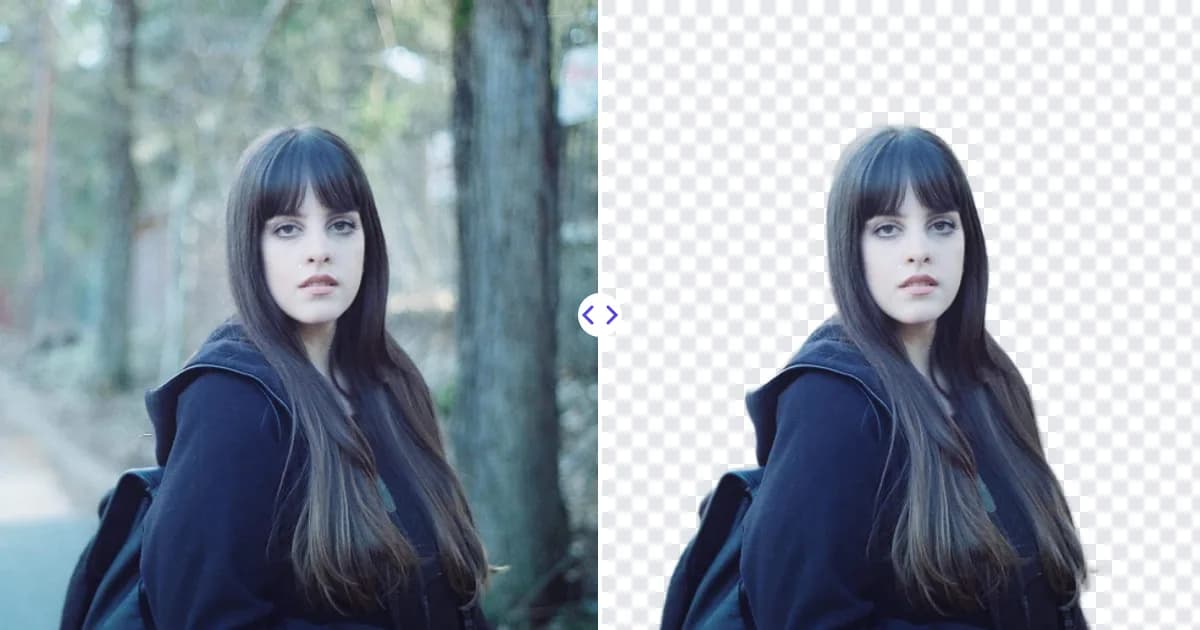
The fastest way to remove the background from a picture is to upload it to an AI background remover, let it detect the subject automatically, and download the result as a PNG with a transparent background. If you need more control, desktop editors like Photoshop or GIMP let you refine the selection by hand. This guide walks through both approaches and explains how to get clean, natural-looking edges.
Why remove the background from a picture?
Removing a background isolates the part of the image that matters - a person, a product, a pet or a logo - so you can reuse it anywhere. Common reasons include:
- Online stores: marketplaces and shop themes often look best with products on a plain white or transparent background.
- Profile pictures and headshots: a clean background looks more professional and lets you choose a consistent brand color.
- Design work: presentations, flyers, thumbnails and social posts are easier to compose when the subject is already cut out.
- Stickers and collages: a cutout can be layered over other images or printed as a sticker.
- Logos and signatures: removing a white background lets them sit cleanly on colored documents and websites.
In every case the goal is the same: keep the subject, drop everything else, and save the result in a format that preserves the empty area as transparency.
Method 1: Use an AI background remover (fastest)
Modern AI tools use segmentation models trained on large numbers of images to recognize the main subject and separate it from its surroundings. You do not need to trace anything yourself. With Remove Photo Bg's background remover, the process looks like this:
- Upload your picture. JPG, JPEG, PNG and WEBP files up to 16 MB are supported, and the tool works in any modern browser on desktop or mobile.
- Let the AI detect the subject. The model finds people, products, animals, cars, logos and other objects automatically.
- Check the preview. Look closely at edges such as hair, fur and fine details.
- Download the PNG. The background is saved as transparent pixels, so you can place the cutout on any color or scene in another editor.
Because the images are processed on Remove Photo Bg's own servers rather than being sent to third-party AI services, this is also a reasonable choice when you are working with product shots or personal photos.
If you are curious about what happens behind the scenes, our explainer on how AI background removal works covers segmentation and alpha mattes in plain language.
Method 2: Remove the background in desktop software
Desktop editors give you full manual control, which is useful for complex composites or when you need to adjust a selection pixel by pixel.
Photoshop
Recent versions of Adobe Photoshop include a Remove Background quick action (available from the Properties panel or the contextual task bar) that creates a layer mask around the detected subject. You can also use Select Subject to generate a selection, then refine it with Select and Mask before adding a mask. Masks are non-destructive, so you can paint back any area the selection missed.
GIMP
GIMP is free and open source. A typical workflow is to add an alpha channel to the layer, use the Foreground Select or Fuzzy Select tool to isolate the subject, invert the selection and delete the background. It takes longer than an AI tool but works offline.
Office apps
PowerPoint and Word include a Remove Background feature for inserted pictures, which is handy for quick slides. Our guide to removing backgrounds in PowerPoint and Word explains the steps and the limitations.
Method 3: Remove the background on your phone
On iPhone, iOS 16 and later lets you touch and hold the subject of a photo to lift it away from the background, then copy or share it. Many Android phones offer a similar feature in the gallery app, depending on the manufacturer and software version. These built-in options are convenient for quick stickers and messages, though they give you less control over the final file. For step-by-step instructions, see how to remove a background on iPhone and Android. You can also open Remove Photo Bg in your mobile browser and upload the photo directly.
Tips for a clean result
The quality of the cutout depends heavily on the original picture. These habits make any method work better:
- Use good contrast. A subject that stands out from its background in color and brightness is easier to separate.
- Keep the subject in focus. Blurry edges are hard for both people and algorithms to trace accurately.
- Avoid cropping the subject. Leave some space around it so the edges are fully visible.
- Start with enough resolution. Small images produce jagged edges when enlarged. If your source is tiny, consider running it through the image upscaler first.
- Watch fine details. Hair, fur, glass and lace are the hardest areas. Zoom in on the preview before downloading.
Hair deserves its own mention - our article on how to cut out hair in photos covers shooting and editing techniques specifically for it.
Choosing the right file format
Saving correctly is just as important as cutting out correctly. JPG does not support transparency, so if you save a cutout as a JPG the empty area becomes solid (usually white). To keep the transparent background, use:
- PNG - the standard choice for transparent images, lossless and supported everywhere.
- WEBP - supports transparency with smaller file sizes, widely supported by modern browsers.
If you need a white background instead, you can place the transparent PNG on a white canvas in any editor and then export it as a JPG.
What to do after removing the background
Once you have a transparent PNG, you can:
- Place it on a solid color, gradient or new scene in Canva, Photoshop, GIMP or PowerPoint.
- Add a soft drop shadow so the subject looks grounded rather than floating.
- Resize it for marketplaces, social media or print.
- Clean up stray objects inside the subject area with the object remover.
Try it yourself
Removing the background from a picture no longer requires hours of careful tracing. For most photos, an AI tool gives you a clean transparent PNG in a few clicks, and desktop software is there when you need fine manual adjustments. Upload a picture to Remove Photo Bg and see how your subject looks on its own.